
The Client Requests option helps you configure the client/buyer request details in iMaxPropertyCRM.
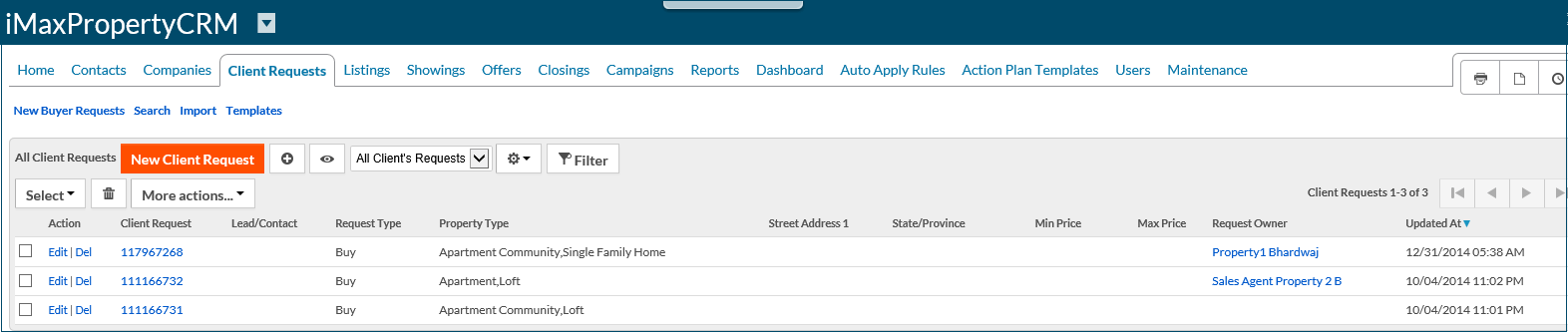
On the client requests tab, you can:
- Create/Edit a Client Request
- Search Client Request
Create/Edit a Client Request
To add a new client request,
1. On the Client Request tab, click on the New Client Request option.The New Client Request page is displayed.
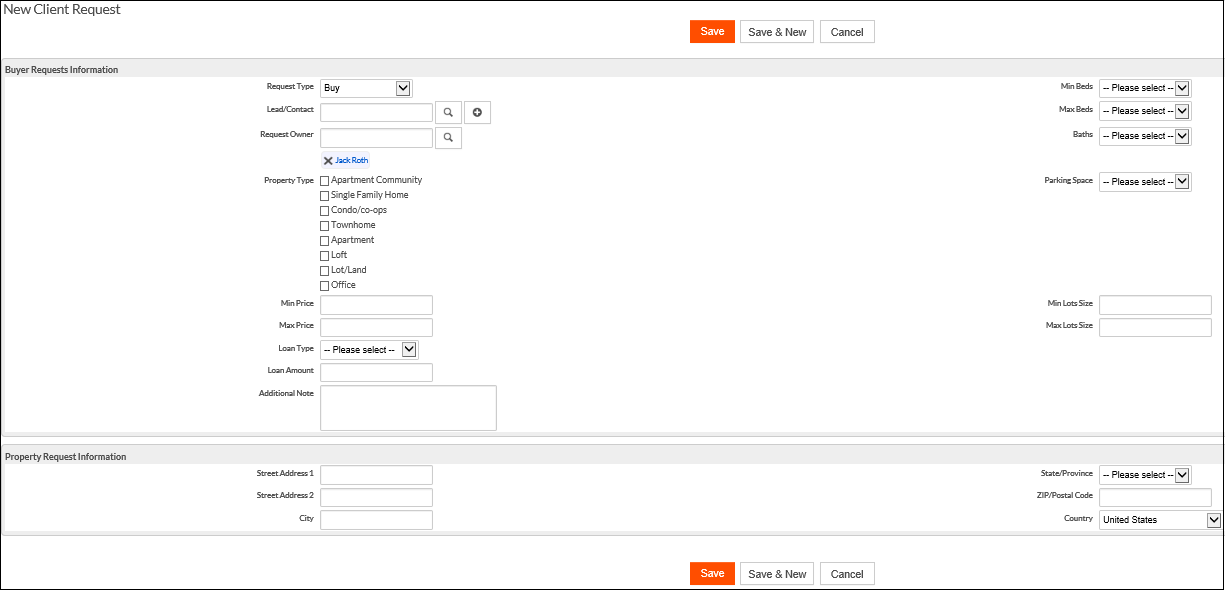
2. Enter the following details
| Option | Description |
| Buyer Requests Information | Enter the following details:
Other information related to the property. |
| Property Request Information | Enter the address details of the property requested by the buyer/client. |
3. Click Save.
If you want to create another request, click on Save & New.
The request will be saved and listed under the client request tab.
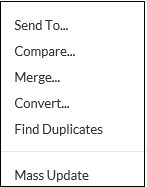
After the client request is added, you can Edit, or Delete for the client request details. Apart from these, you can use the following options:
Search Client Requests
To search for client requests,
1. On the Client Request tab, click on the Search option.
The Search page is displayed.

2. Enter the keywords as the search criteria. Additionally, you can use the search filters.
3. Click Search.
The search result page is displayed with the list of details matching the search criteria.