
The Listings option helps you configure the client/buyer listings details in iMaxPropertyCRM.

On the listings tab, you can:
- Create/Edit a Listing
- Search Listings
- Import Listings
- Create/Edit Templates
Create/Edit a Listing
To add a new listing,
1. On the Listing tab, click on the New Listing option.The New Listing page is displayed.
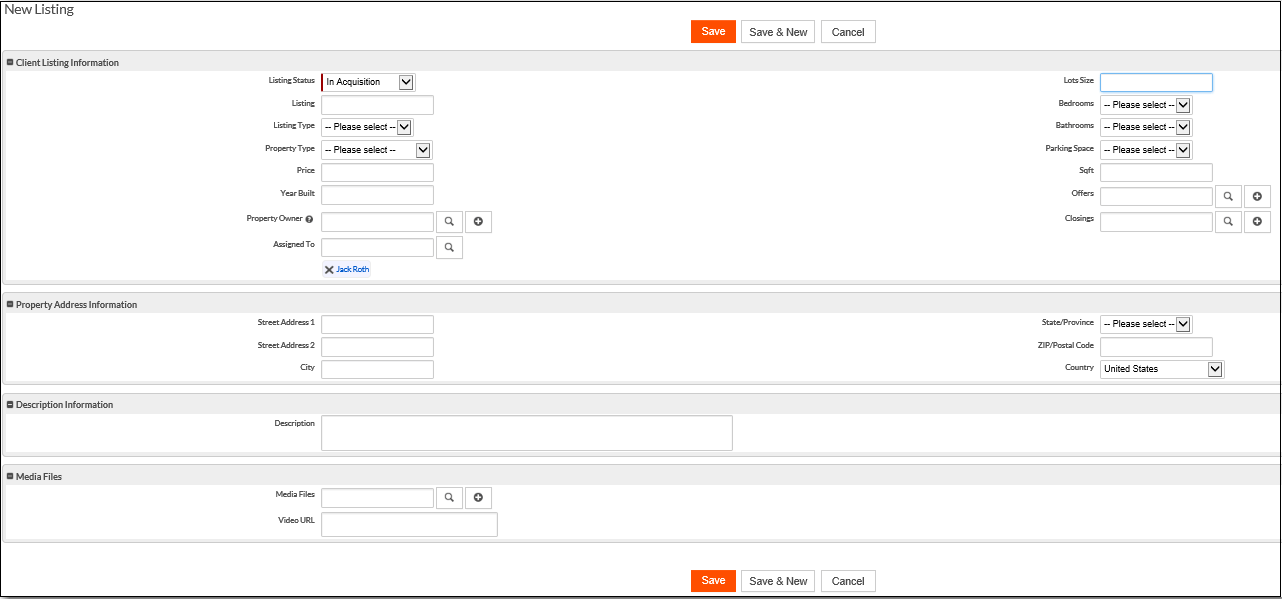
2. Enter the following details
| Option | Description |
| Client Listing Information | Enter client listing information, such as Listing status, name, type, prize, etc. |
| Property Address Information | Enter the address details of the property listed. |
| Description Information | Enter a description for the listing. |
| Media Files | You can also upload media files or also add a video URL of the property. |
3. Click Save.
If you want to create another listing, click on Save & New.
The request will be saved and listed under the listing tab.
After the listing is added, you can Edit, or Delete for the listing details. Apart from these, you can use the following options:
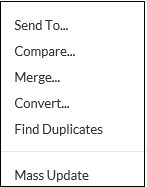
Search Listings
To search for listings,
1. On the Listing tab, click on the Search option.The Search page is displayed.

2. Enter the keywords as the search criteria. Additionally, you can use the search filters.
3. Click Search.
The search result page is displayed with the list of details matching the search criteria.
Import Listings
The Import option helps you import listing details from Excel or CSV files into iMaxPropertyCRM.
To import listings,
1. On the Listing tab, click on the Import option.The Import page is displayed.
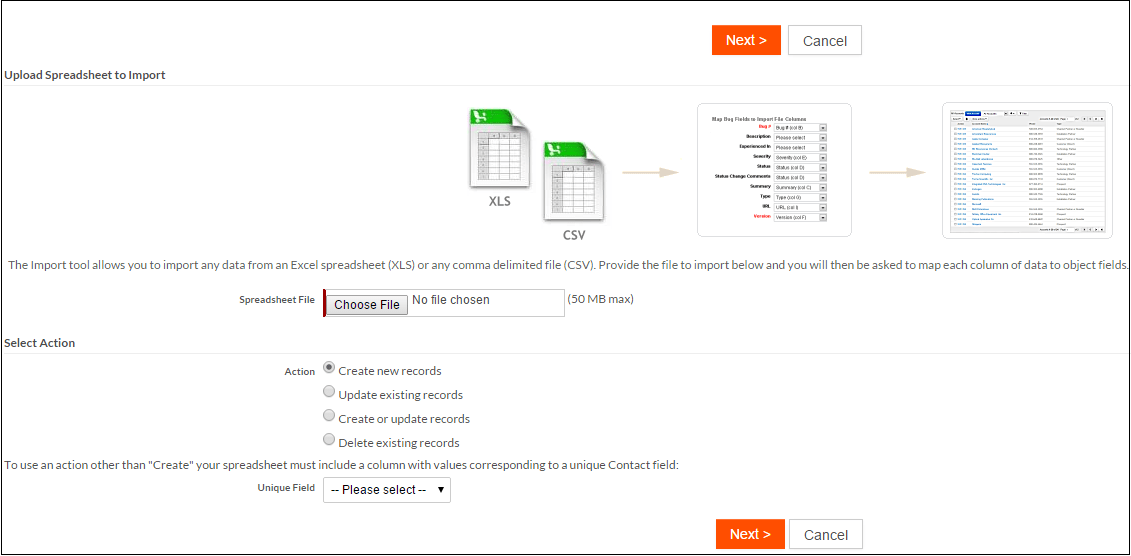
2. Click on Choose File.Note: Ensure that the xls file selected is correct and does not have additional rows or columns.
3. Browse through the location where the file is stored.
4. Click Open/OK.The file will be added.
5. Select the action type. For example: Create new records.
6. Select the unique field from the drop-down menu.
7. Click Next.
The contacts will be imported.
Create/Edit Templates
The Templates option helps you create various templates for your contacts.
To create a template,
1. On the Listing tab, click on the Templates option.The Templates page is displayed.

Here you can create the various templates.
2. Select the template you want to create.
3. Enter the following details based on the template type selected.
| Option | Description |
| New Mail Template |  Enter the mandatory details such as Template Name and Subject.In the editor, you can write the email content that will be used for emails. Enter the mandatory details such as Template Name and Subject.In the editor, you can write the email content that will be used for emails.
Click Save. The email template will be added. |
| New Document Template |  You can upload a document that contains the template which can be used on iMaxPropertyCRM.Enter the mandatory details such as Template Name and Choose the File to be uploaded. You can upload a document that contains the template which can be used on iMaxPropertyCRM.Enter the mandatory details such as Template Name and Choose the File to be uploaded.
Click Save. The document template will be added. |
| New Record Template |  Enter the Template Name and select the record/contact details to clone the template.Click Save. Enter the Template Name and select the record/contact details to clone the template.Click Save.
The record template will be added. |
After creating the templates, the list will be displayed under Templates section.

The templates can be Edited, Cloned, or Deleted at anytime.